
Sell more, step by step
How to use the newest tools in your shop: bundle deals, order changes, shipping on time, listing any card, and sharing new arrivals.
Bundle deals
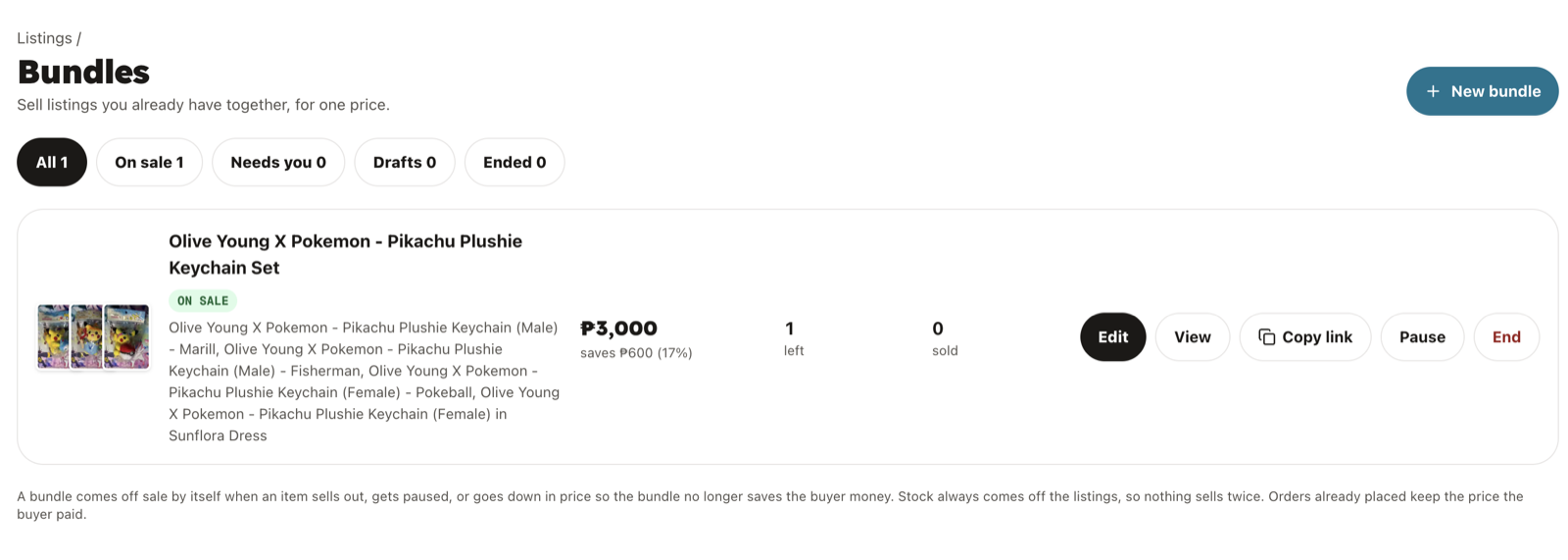
Sell two or more of your listings together for one price that is lower than buying them separately. Good for evolution lines, playsets and clearing slow movers.
How to
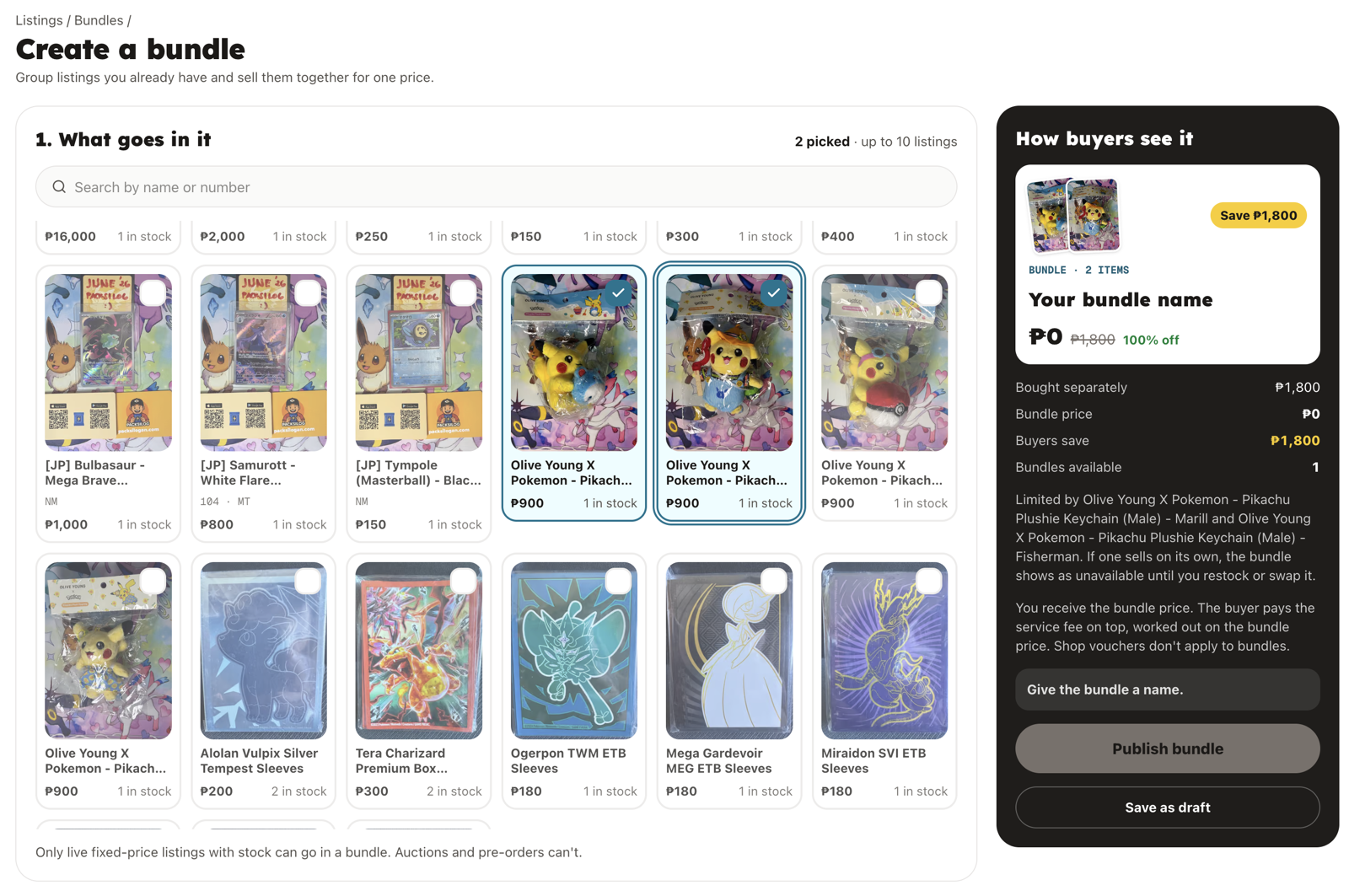
- 1Open Listings in your dashboard and tap Bundles, then New bundle.
- 2Pick the listings to include. Up to 10 listings, up to 20 of each. One listing with a quantity of 2 or more also works, for a playset.
- 3Set the bundle price. It has to be below what the items cost separately; the percentage chips give you a quick starting point. If a price cannot split evenly across the items, the editor suggests the nearest one that can.
- 4Add a title and, if you like, a description and start and end dates.
- 5Tap Publish to put it on sale, or Save as draft to finish later.
Good to know
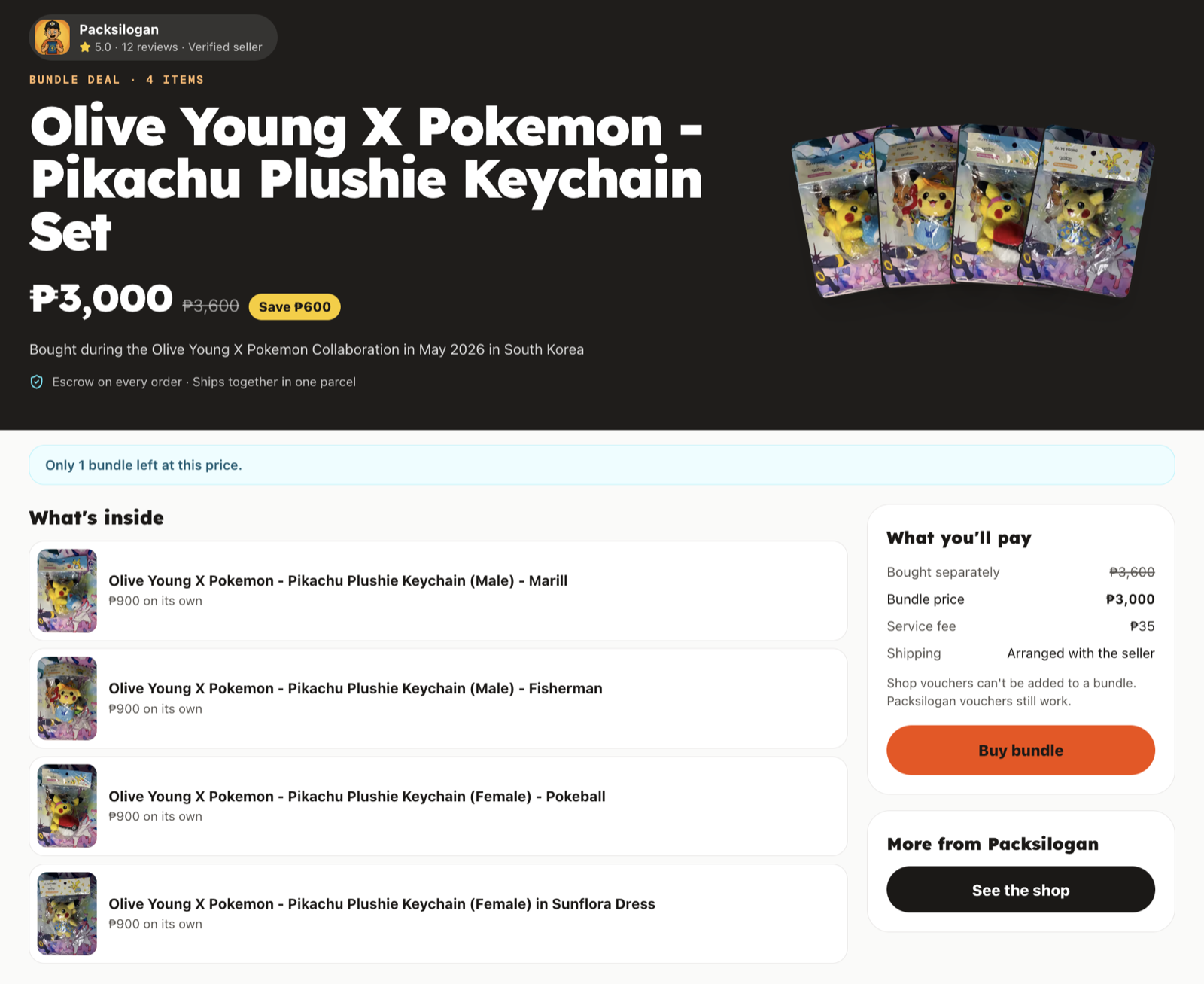
- Buyers see the deal on each item's page, on your shop page, and in the Bundle deals section on the home page.
- The number of bundles left follows your stock: it is the most you can sell before one of the items runs out. Stock still lives on each listing.
- A bundle turns itself off when an item sells out, is paused, or the bundle price is no longer a saving. It turns back on when that is fixed.
- Each item in the order carries its share of the bundle price, so refunds and payouts work as usual.
- Your shop discount codes do not apply to bundles. Packsilogan codes still do.
- From the bundles list you can copy the bundle's link, pause it, turn it back on, or end it.
Change quantities on a paid order
Short on stock, or found a miscount after the buyer paid? Change the quantity instead of cancelling the whole order. The buyer decides.
How to
- 1Open the order from Orders and find Change quantities.
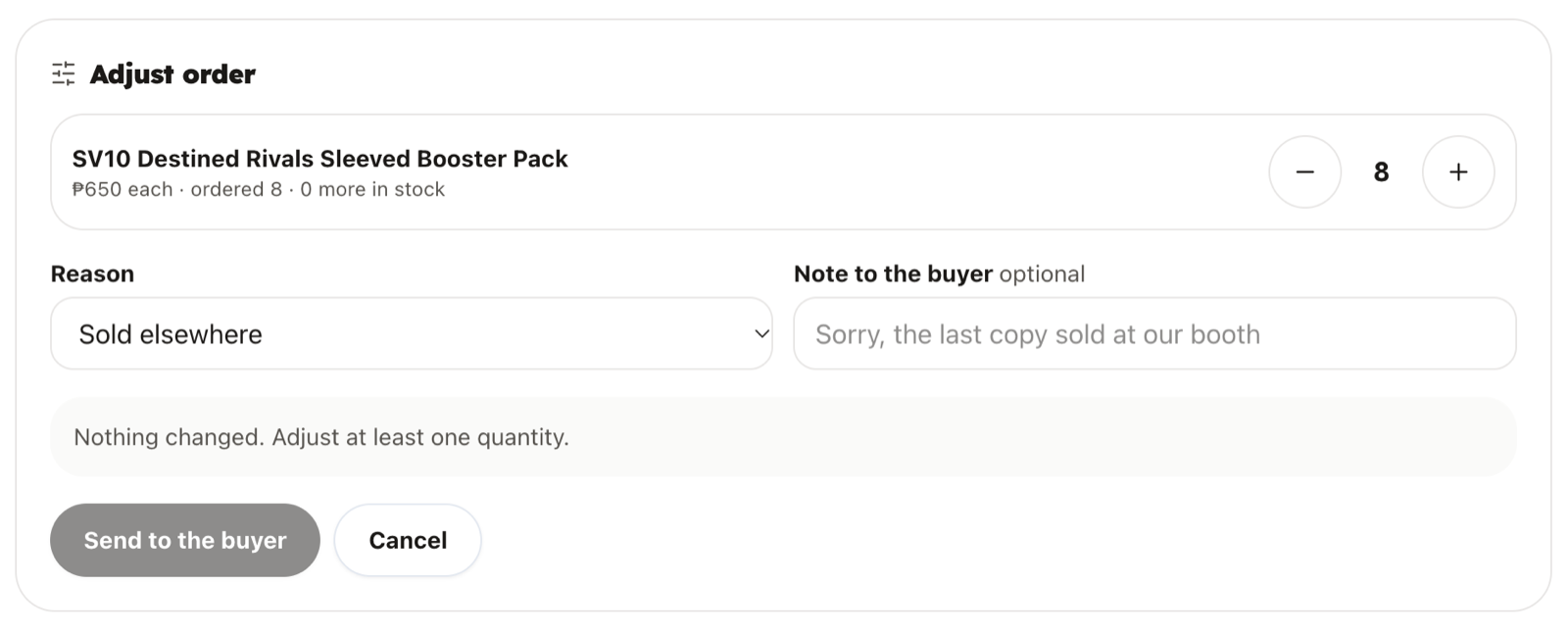
- 2Set the new quantity for each line. You can lower or raise it.
- 3Pick a reason and add a short note for the buyer, such as which copy sold at your booth.
- 4When lowering, tick Also mark the short listings out of stock if they cannot oversell again.
- 5Check the preview of what the buyer gets back or pays more, then tap Send to the buyer.
Good to know
- The buyer has 48 hours to answer. For a lower quantity they accept, or cancel the order for a full refund. If they do not answer in time, a lower quantity is accepted.
- For a higher quantity the buyer pays the difference at checkout. If they do not answer in time, the order stays as it was.
- Your shipping deadline pauses while you wait for the buyer.
- Money owed back to the buyer is sent by Packsilogan. You do not need to send it yourself.
- Works on paid orders that have not shipped yet. Trades and sell-to-shop orders cannot be changed.
Cancelling an item after payment
Sometimes a card really is gone. If you cancel an item the buyer already paid for, they get a full refund for it.
How to
- 1Try Change quantities first: the buyer keeps the rest of the order and the shipping deadline pauses while they decide.
- 2If you still need to cancel, open the order and tap Cancel order. Add a reason; the buyer sees it.
Good to know
- The buyer is refunded the item's price plus its share of the platform fee. Packsilogan sends the refund.
- The item goes back into your listing's stock.
- If every item on the order is cancelled, the order closes as refunded and there is nothing to ship.
Ship within 48 hours
Paid orders need a tracking entry within 48 hours of payment. This keeps buyers confident to order again.
How to
- 1Pack the order and open it from Orders.
- 2Add a tracking entry: an LBC tracking number, or a Lalamove or J&T link. Buyers can tap it to follow the parcel.
- 3Need more time, for example for a bulk delivery? Use Need more time to ship? on the order to extend by 24 hours, 48 hours or 72 hours. You can extend up to 3 times, and the buyer is told.
Good to know
- An order not shipped by its deadline is refunded to the buyer and your shop gets a strike. This applies to orders paid from November 2, 2026.
- Orders the buyer collects at your card show table are not affected.
List cards from every English set
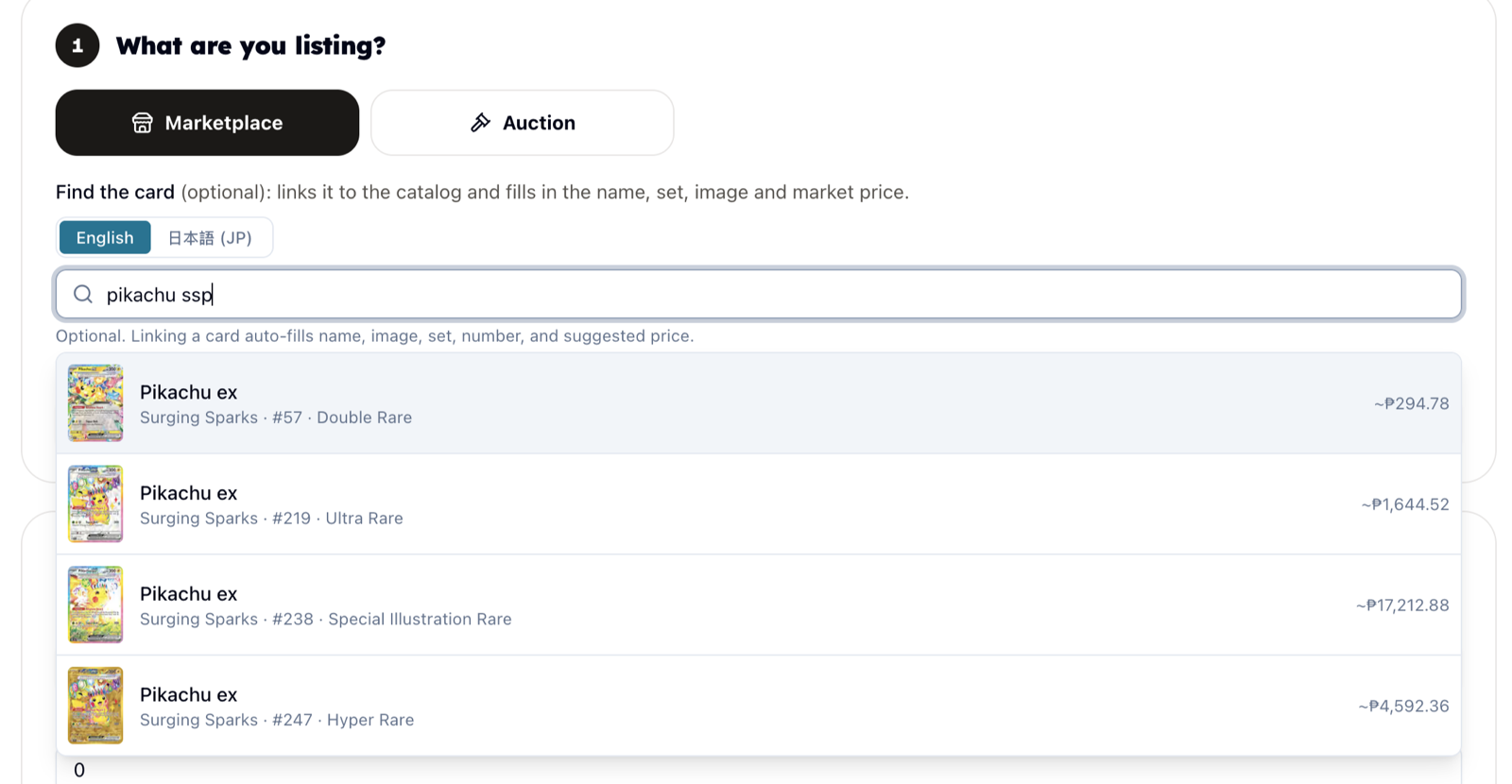
The card catalog now covers every English set, from Base Set to the newest release, plus Japanese Scarlet & Violet sets. A listing linked to its card gets the card picture, set and number, and price history.
How to
- 1One card: create a listing and search for the card, for example “lanturn unleashed” or “pikachu ssp 25”. Pick the print you have.
- 2A stack of cards: use Quick add to search and add one card after another, then save them all as drafts.
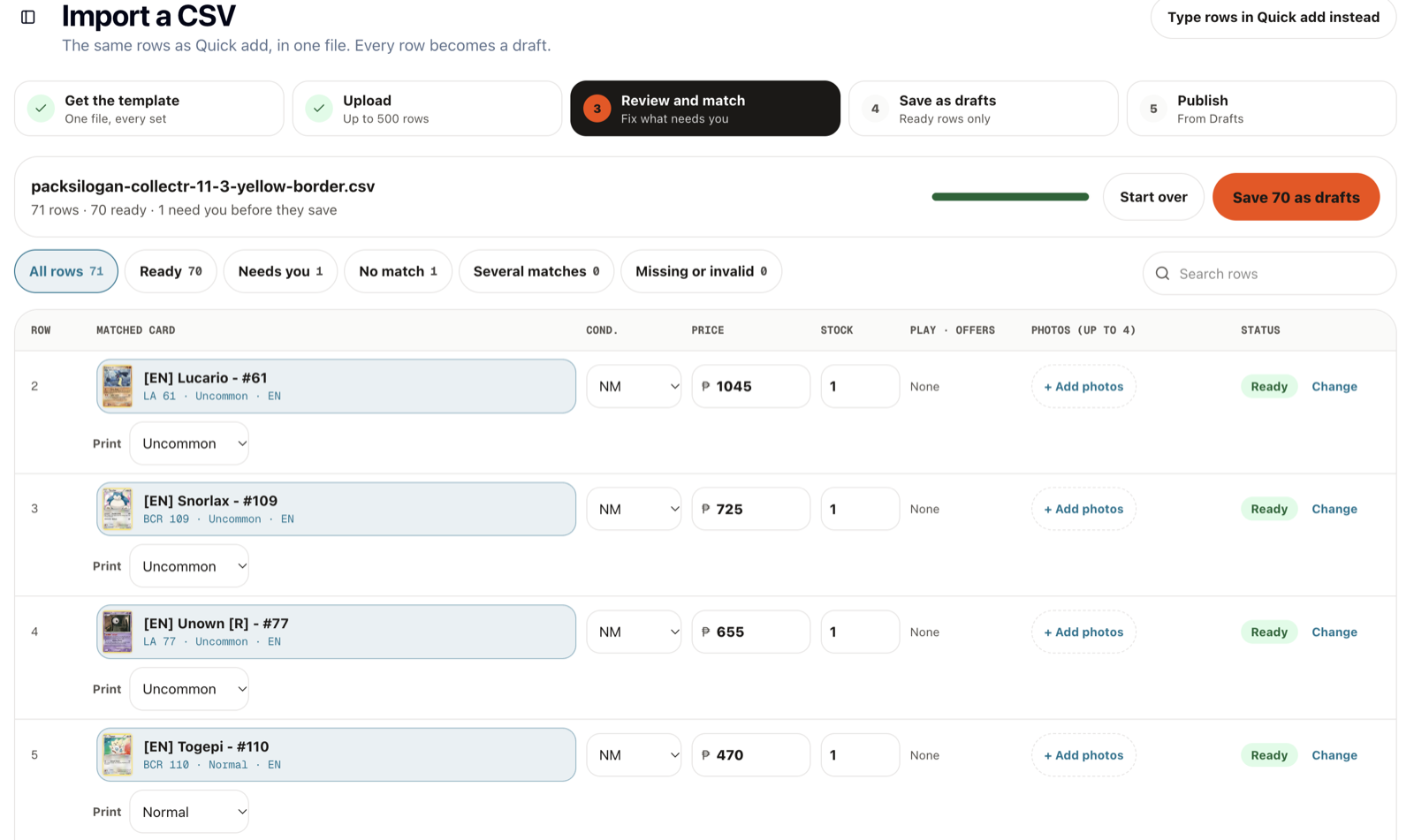
- 3A whole binder: use Import CSV. Download the template, fill in each card's set code and number, then upload. Up to 500 rows and 4 photos per row. You check every match before anything is saved.
- 4Drafts wait in Listings until you publish them.
Good to know
- For older sets the set name or its code both work in the CSV, for example “Boundaries Crossed” or “bw7”.
- A row that cannot be matched can still be saved as a listing without a card link.
Help buyers find your listings
Search now reads the way collectors type, so a buyer looking for your card is more likely to find it.
How to
- 1Link each listing to its catalog card. Buyers can then find it by set code and number: “pikachu ssp 25”, “charizard obf”, “#025”.
- 2Leave the language right on the listing. Buyers can add “jp” or “en” to a search to see only that language.
- 3Keep titles to the card name and number, like the default “[EN] Umbreon ex - #60”.
Good to know
- Small typos are forgiven: a search for “charzard ex” still finds Charizard ex.
Share new arrivals as one link
Post your latest listings in Facebook groups with one link, ready-made images and a caption.
How to
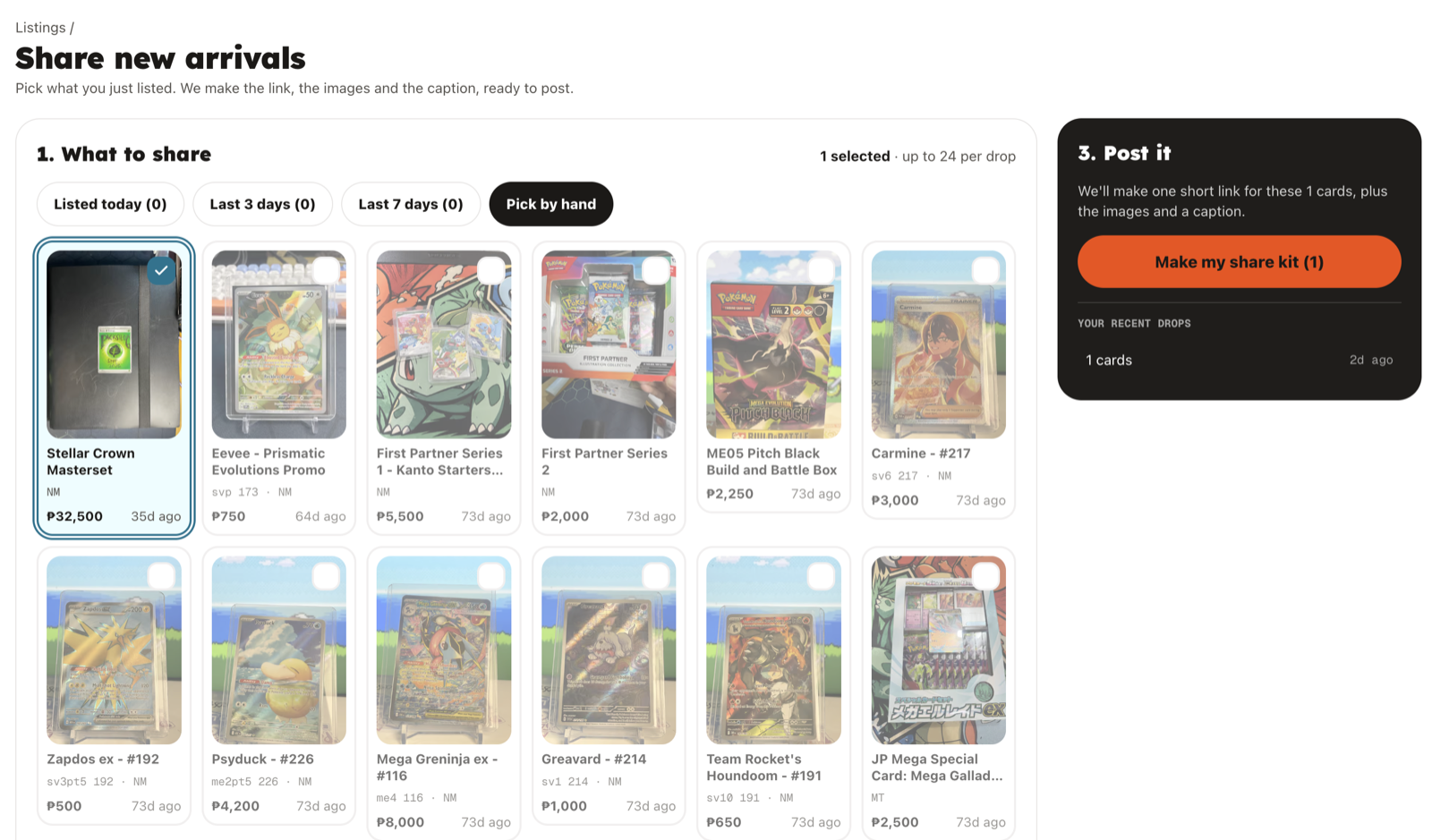
- 1Open Listings and tap Share new arrivals. Today's new listings are picked for you.
- 2Add or remove listings, then make the drop.
- 3Copy the link, download the feed and story images, and copy the caption.
- 4Post them in your groups. Buyers land on a page with just those cards.
Good to know
- Link specific listings in groups rather than your whole shop: buyers act faster on a short list.
Stuck on something?
Email support@packsilogan.com or message us on Facebook.